| Instructions on how to get your iPhone ECID using Windows. Step One Put your iPhone into recovery mode. If you do not know how to do this then you can follow this tutorial. Step Two Launch the USBView application. If you do not already have this application you can download it here. It is a small free utility provided by Microsoft.  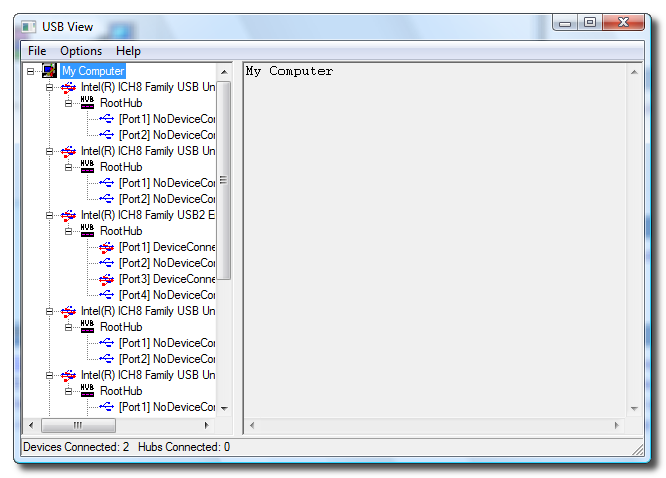 Step Three Click to select Config Discriptors from the Options menu.  Step Four Click to select Refresh from the File Menu.  Step Five Select the Apple Recovery (iBoot) device from the USB Device Tree in the left panel then Copy (highlight and press Control+c) your ECID from the Descriptor fields on the right.  | ||
Showing posts with label Recovery. Show all posts
Showing posts with label Recovery. Show all posts
Monday, 21 June 2010
How to Find Your iPhone ECID [Windows]

How to Put an iPhone Into Recovery Mode
To put the iPhone into recovery mode so you can do an iTunes firmware restore follow these steps:
Step One
Open iTunes and connect the iPhone to your Mac.

Step Two
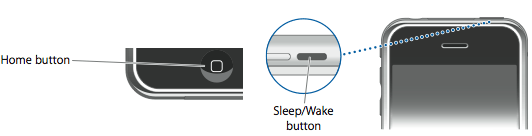
Press and hold the Home button and the Sleep/Wake button at the same time.

Step Three
As soon as the screen goes black release the Sleep/Wake button. Continue holding the home button until you iTunes pops up a message telling you that it has detected an iPhone in recovery mode.

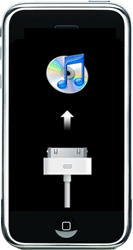
The iPhone will look like this:

Read rest of entry
Step One
Open iTunes and connect the iPhone to your Mac.

Step Two
Press and hold the Home button and the Sleep/Wake button at the same time.
Step Three
As soon as the screen goes black release the Sleep/Wake button. Continue holding the home button until you iTunes pops up a message telling you that it has detected an iPhone in recovery mode.

The iPhone will look like this:
Subscribe to:
Posts (Atom)


