Wednesday, 23 June 2010

iPhoneBrowser lets you copy files to/from iPhone on Windows

iPhoneBrowser is like your Windows File Explorer but it’s specially designed for iPhone. Once your iPhone is connected to your computer, by launching iPhoneBrowser, you can view and navigate iPhone’s folder. Of course, you can copy files to/from iPhone via drag & drop. One highlight of iPhoneBrowser is it comes with shortcut to popular folder location. For example, you can find in the “Goto Location” a shortcut to Ringtones folder. Or SummerBoard theme folder. Or the camera roll
folder.


If you’re not familiar with SSH, go for iPhoneBrowser to transfer file to iPhone. As long as you know how to use Windows’ file explorer, you can handle iPhoneBrowser. Of course, if you would like to do file transfer via Wifi, the only solution on Windows is to use SSH. For me, SSH is still the preferred way to copy files to iPhone. How about you? Which way do you prefer?

Installing iPhoneBrowser

iPhoneBrowser is an open source software, which means it’s free to download
. You can download it Google code and the latest stable version is 1.52 (You may also try v1.7 BETA). The installation
is straightforward, same as other normal Windows application. Once installed, connect your iPhone through USB and launch iPhoneBrowser from Program Menu. You’ll then see the iPhone folder.
Read rest of entry

How to Install Winterboard Theme on iPhone without using Cydia

A reader asked, “Sometimes, I stumbled upon websites that offer some great Winterboard themes for download. I know how I can download & install Winterboard theme via Cydia. But I can’t find those themes on Cydia. So, how can I install those themes that are downloaded directly from web?
Very good question. Cydia offers the most straightforward way to download Winterboard theme. But it’s not the only channel you can find awesome Winterboard theme online. Say, you can find tons of Winterboard theme at Softpedia. Usually, these Winterboard themes are packed in a zip file. So, how do you install it?

Get Prepared

That’s pretty easy to install Winterboard theme manually. But first, let’s get prepared.
  1. You’ll have to download DiskAid, which is a free file explorer for iPhone. You can use DiskAid to transfer file back and forth between iPhone and your computer. For more information, check out this post.
  2. Download the Winterboard theme you love and extract the zipped file. For demonstration, I download the Super Mario theme from Softpedia and extract in the download folder.

Install Winterboard Theme via DiskAid

So, after you get everything ready. Connect your iPhone to your computer via USB cable and launch DiskAid. Then select “Root folder” in the lower-left option. Answer “yes” for the warning. This option will let you browse the whole iPhone file system.

Next, on the left pane, go to “Library” and then access “Themes” folder. All Winterboard theme files are placed under this folder. If you have already installed some Winterboard themes on your iPhone, you’ll see those theme folders.

Okay, to copy the themes you have download, click “Copy Folder to Device” and select the theme folder you just extracted. Click “OK” to confirm and wait for the transfer process to complete.

That’s it. The Winterboard theme is installed on your iPhone. Go back to your iPhone and launch Winterboard. The theme is already there.

What do you think about this alternative way of Winterboard theme installation? Hope this can help some of you and enjoy Winterboard fun!
Read rest of entry

Monday, 21 June 2010

How to Unlock the iPhone 3G, 3GS Using UltraSn0w

These are instructions on how to unlock the iPhone 3G and iPhone 3GS for use with any GSM cellphone carrier using UltraSn0w. This will work with the iOS 4.0 firmware.

Before you can follow these instructions you must have a jailbroken iPhone and you must be on the 04.26.08, 05.11.07, 05.12.01, or 05.13.04 baseband(modem firmware). Go to settings menu at iphone, choose general and about for see the firmware

If you are on T-Mobile remember to turn off 3G before starting...

Watch the Video!
For your convenience this unlock tutorial is available in video format also. Click the Watch It button to view the tutorial!


Step One
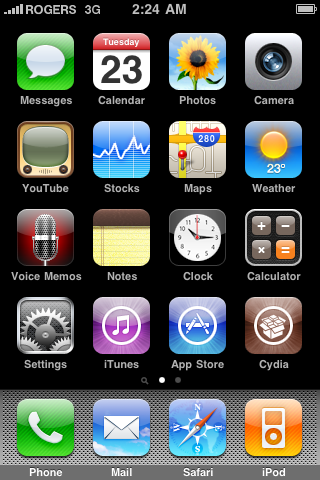
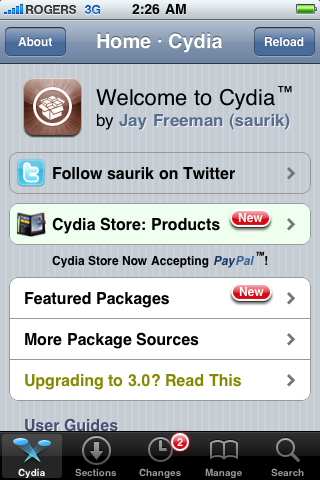
Press to launch Cydia Installer from your SpringBoard.


Step Two
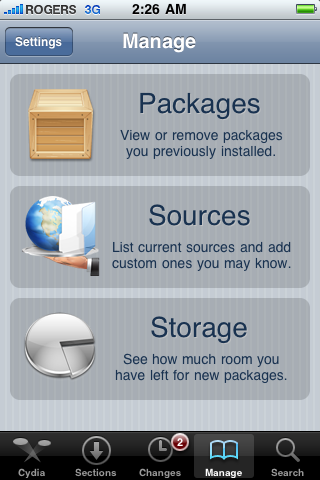
Press to select the Manage tab at the bottom of the screen.


Step Three
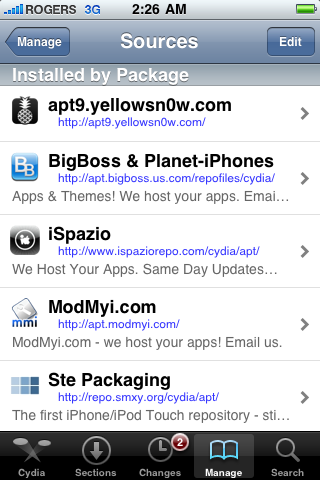
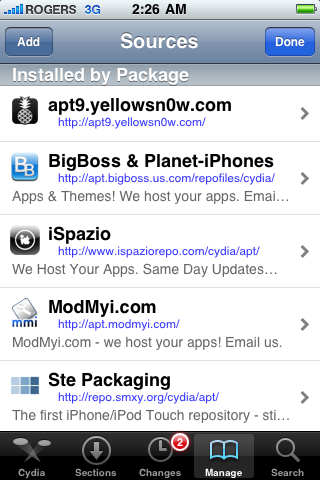
Press to select the large Sources button


Step Four
If the ultrasn0w repo is not present press the Edit button at the top right of the screen. Otherwise, skip to Step Nine.


Step Five
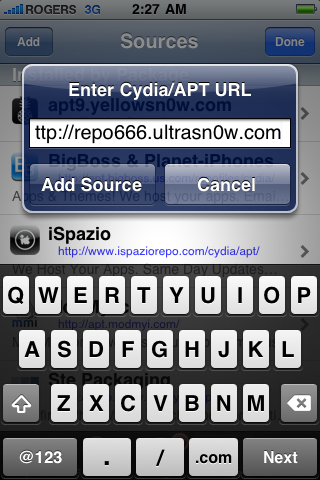
Press the Add button at the top left of the screen.


Step Six
Enter http://repo666.ultrasn0w.com/ as the source url and press the Add Source button.


Step Seven
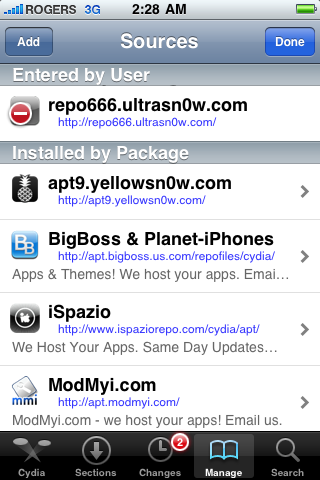
Once the source has been added press the large Return to Cydia button.


Step Eight
Press the Done button at the top right of the screen.


Step Nine
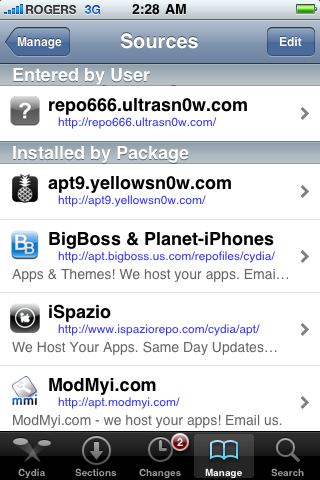
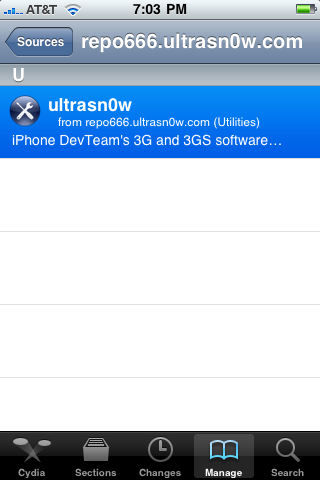
Press to select repo666.ultrasn0w.com from the list of user entered sources.


Step Ten
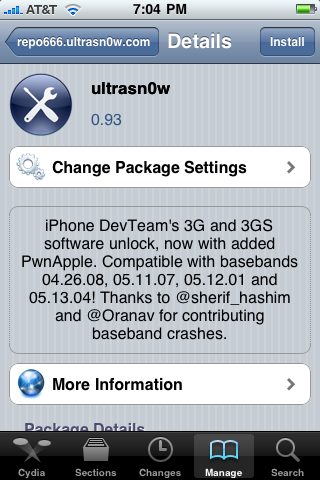
Press to select ultrasn0w from the list of packages


Step Eleven
Press the Install button at the top right of the screen.


Step Twelve
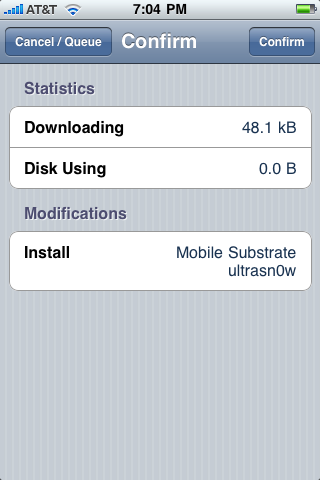
Press the Confirm button at the top right of the screen.


Step Thirteen
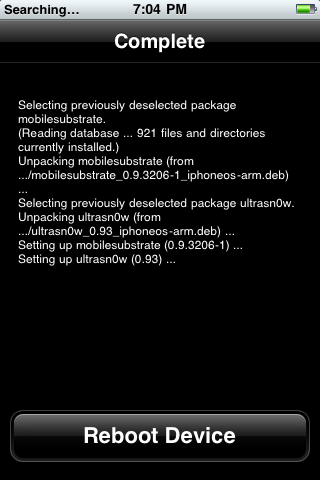
After installation completes successfully press the large Return to Cydia button.


Step Fourteen
Now press the Home button then power off and power on the iPhone. You do this by holding down the power button for 3 seconds then moving the power slider that appears to the right. Press the power button again to turn on the phone.


Step Fifteen
You should now be able to insert the SIM of your choice!


***THANKS: A big thank you to all the members of the iPhone Dev-Team for all their hard work! It is much appreciated by all.
Read rest of entry

How to Find Your iPhone ECID [Windows]

Instructions on how to get your iPhone ECID using Windows.
 
Step One
Put your iPhone into recovery mode. If you do not know how to do this then you can follow this tutorial.

Step Two
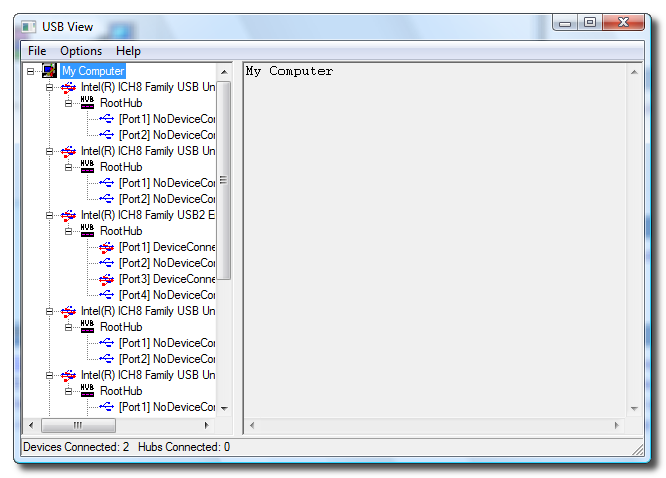
Launch the USBView application. If you do not already have this application you can download it here. It is a small free utility provided by Microsoft.


Step Three
Click to select Config Discriptors from the Options menu.


Step Four
Click to select Refresh from the File Menu.


Step Five
Select the Apple Recovery (iBoot) device from the USB Device Tree in the left panel then Copy (highlight and press Control+c) your ECID from the Descriptor fields on the right.
 
Read rest of entry

How to Put an iPhone Into Recovery Mode

To put the iPhone into recovery mode so you can do an iTunes firmware restore follow these steps:

Step One
Open iTunes and connect the iPhone to your Mac.


Step Two
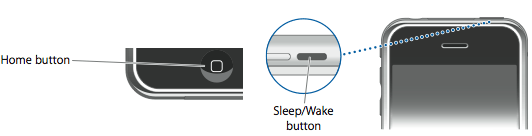
Press and hold the Home button and the Sleep/Wake button at the same time.


Step Three
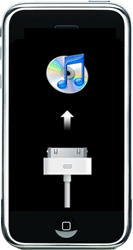
As soon as the screen goes black release the Sleep/Wake button. Continue holding the home button until you iTunes pops up a message telling you that it has detected an iPhone in recovery mode.


The iPhone will look like this:
Read rest of entry

Crash Bandicoot Nitro Kart 3D Cracked IPA

Crash Bandicoot Nitro Kart 3D


Description

The richest 3D kart racing experience! Speed your way through 12 thrilling tracks and multiple environments! Race and battle against zany opponents and turn them to dust with 8 devastating weapons. Tilt and twist your iPhone for truly "Nitro" driving sensations.


Download Links

Version 1.0.0


Read rest of entry

THE GAME OF LIFE Classic Edition.ipa


THE POSSIBILITIES ARE ENDLESS… What does your future hold? Enjoy a new spin on the classic board game!
_______________________________________

LIFE IS BETTER IN 3D
Navigate your animated tokens through a stunning, 3D environment of winding roads & lush landscapes!

LIFE’S A BREEZE
Enjoy the ease & fluidity of innovative touchscreen controls as you set out on your adventure.

LET THE MUSIC PLAY
Listen & control music from iTunes® while you play.

THE MORE THE MERRIER
Pass ‘N Play with up to 3 friends.


LIFE’S MANY CHOICES
Settle down and get married or stay single and indulge in lavish luxuries & risky investments!
RETIRE IN STYLE
Gain tiles worth big bucks when you land on “Life Spaces” & collect “Share The Wealth Cards” for your shot at becoming a millionaire!
mediafire
filedude

Read rest of entry
 

Followers

Recommended Gadget

Tutorial and Tips Iphone Copyright © 2009 Gadget Blog is Designed by Ipietoon